

L'équipe Texto SMS Gratuit
28 September 2026 · 11 min read
Introduction: 128 GB bought, 71 GB usable
You bought a 128 GB phone. You've installed only eighteen apps, you have 2,400 photos, no films, no heavy games. And yet, one morning, the notification appears: "Storage almost full." You open the settings: 119 GB used out of 128. You can't update the system, the camera refuses to record, and one mysterious line — "System," "Other," "Miscellaneous" — accounts for 30 GB all by itself.
This isn't a fault, and it isn't your doing. It's how a modern smartphone normally works, and nobody explains the accounting at the point of sale. Between the way storage is actually formatted, the dual system partition, app caches that never clear themselves and files duplicated by messaging apps, a "128 GB" device delivers roughly a hundred gigabytes in practice — and a good half of that fills up with data you never consciously created.
This guide won't tell you to "delete some apps." It does the opposite: it identifies, item by item, what's really occupying your memory, in descending order of severity, and gives you for each one the procedure that reclaims space without losing anything important. By the end, most readers recover between 20 and 50 GB.
First gap: the gigabytes that never existed
Before hunting for culprits, you have to accept one unavoidable subtraction.
Manufacturers count storage in decimal gigabytes (1 GB = 1,000,000,000 bytes), while the operating system generally displays it in gibibytes (1 GiB = 1,073,741,824 bytes). The gap is around 7%. A commercial "128 GB" is therefore 119 GiB as displayed. It's not a scam, it's a difference in units — the European Commission and France's DGCCRF accept decimal notation, provided the total capacity is stated.
Then the system itself is added on top:
| Item | Typical usage in 2026 |
|---|---|
| Decimal/binary gap | ~9 GB on a "128 GB" |
| Operating system + preinstalled apps | 12 to 25 GB |
| Update partition (Android A/B seamless) | 3 to 6 GB |
| System temporary files, logs, indexes | 2 to 8 GB |
On an entry-level Android loaded with manufacturer software, you commonly drop to 85 GB actually available out of 128. On an iPhone the gap is a little smaller, but very real. Remember this figure: your usable capacity is not the one on the box.
The first real culprit: messaging apps and their cache
In nearly every case we see, the number one item is neither photos nor apps: it's WhatsApp, Messenger, Telegram and Snapchat combined.
The mechanism is simple and devastating. When a contact sends you a 40 MB video in a family group, three things happen:
- The file is downloaded into the app's folder.
- It is copied into the photo gallery (if automatic download is enabled).
- A thumbnail and a compressed version are generated in the cache.
The result: 80 to 100 MB consumed for a video you watched once. Multiply that by a fifteen-person group that's been active for three years, and you end up with folders of 15 to 30 GB. On Android, that folder is usually called WhatsApp/Media, and it often contains forgotten subfolders: WhatsApp Animated Gifs, WhatsApp Voice Notes, WhatsApp Stickers.
What to do, in this order
- Turn off automatic media download. In WhatsApp: Settings → Storage and data → Media auto-download. Set "Photos," "Audio," "Videos" and "Documents" to "Never" or "Wi-Fi only." It's the single most profitable action in this whole guide, and it takes thirty seconds.
- Use the built-in "Manage storage" tool. WhatsApp lists conversations by size and lets you sort files larger than 5 MB. Deleting the twenty biggest items often frees 4 to 8 GB in one go.
- Clear app caches, not their data. On Android: Settings → Apps → [app] → Storage → Clear cache. The cache rebuilds itself; the "data" contains your accounts and your history. Never confuse the two buttons.
- On iOS, there's no global "clear cache" button. The method that works: offload the app (Settings → General → iPhone Storage → Offload App), which removes the cache while keeping your documents and data.
A point that's often missed: on Android, "Clear cache" deletes no messages and no saved photos. On WhatsApp, however, "Clear data" wipes your local history if it isn't backed up. Check the date of your last backup before touching that button.
The second culprit: photos, but not the ones you think
A smartphone photo in 2026 weighs between 2 and 6 MB. Two thousand photos is therefore 6 to 10 GB — significant, but rarely catastrophic. The problem comes from three side effects.
Burst shots and duplicates. Holding down the shutter produces twenty-five near-identical frames. Most galleries group them visually but keep them all. Sorting through bursts and screenshots (often several hundred) easily frees 3 to 5 GB.
4K videos. One minute of 4K video at 60 frames per second weighs around 400 MB. Ten minutes of the school end-of-year show, and you've used 4 GB. If you film regularly, switching the camera to 1080p for everyday use divides the size by four with no visible difference on a phone screen. The settings remain available for special occasions.
The recycle bin. Modern galleries keep deleted items for 30 to 60 days. Until the bin is emptied manually, nothing is actually freed. This is the number one source of frustration: "I deleted 800 photos and nothing happened."

For archives you want to keep without keeping them on the phone, there are two routes. The cloud (Google Photos, iCloud, pCloud) is convenient but becomes paid beyond 5 to 15 GB depending on the plan, and depends on a lifelong subscription. The local alternative remains the most economical over the long run: a 2 TB 2.5-inch external hard drive costs less than three years of cloud subscription and locks you into no ecosystem. For a direct transfer from the phone, a dual-connector USB-C flash drive saves you a trip through a computer.
The third culprit: "Other," "System," "App data"
This is the line that drives people mad, because it isn't clickable. In reality it bundles together identifiable items:
- Streaming files downloaded for offline use. Netflix, Spotify, Deezer, YouTube Premium, podcasts. A user who downloads their playlists silently accumulates 5 to 20 GB. These files aren't visible in the gallery or the file manager: they appear only in the relevant app's storage.
- Local messaging backups. On Android, WhatsApp keeps dated
msgstore.db.crypt14files, one per day, sometimes covering a week. Several gigabytes of duplicates. - Game files. The "additional data" downloaded after installation isn't counted in the size shown on the store. A game listed at 200 MB can take up 8 GB once fully installed.
- Forgotten downloads. The
Downloadfolder holds PDFs of expired train tickets, APKs, attachments, shared videos. Open it, sort by size in descending order: it's often a surprise. - Logs and crash reports, a few hundred megabytes, which only a restart or an update purges.
On iOS, the "Other" line (or "System Data") swells particularly when an update has been downloaded but not installed: the installation file can weigh 6 GB. Simply running the update makes it disappear.
The complete method, in order of payoff
Here's the sequence to follow. It's ranked by gain/effort ratio, from most profitable to most marginal.
| Step | Typical gain | Time |
|---|---|---|
| Turn off auto-download in messaging apps | Preventive (avoids 10 GB/year) | 1 min |
| Empty the gallery recycle bin | 2 to 8 GB | 1 min |
| Manage WhatsApp storage (files > 5 MB) | 4 to 15 GB | 10 min |
| Delete offline downloads (music, series) | 5 to 20 GB | 5 min |
| Empty the Downloads folder | 1 to 4 GB | 5 min |
| Install the pending system update | 3 to 6 GB | 20 min |
| Clear app caches one by one | 1 to 5 GB | 10 min |
| Sort through bursts and screenshots | 2 to 5 GB | 20 min |
| Uninstall games not opened in 6 months | variable | 5 min |
| Restart the device | 0.5 to 1 GB | 2 min |
One methodological note: make a backup before you start. Not because these steps are risky — they aren't — but because sorting photos goes far more calmly when you know a copy exists somewhere else. A class A2 microSD card is enough on Androids that still accept one, and a USB-C memory card reader lets you empty the card onto a computer in a few minutes.
What's useless (and what makes things worse)
The smartphone "cleaner" market thrives on this anxiety. Let's set the record straight.
"Cleaner," "Booster" and "Master Clean" apps are counterproductive. They take up space themselves, run in the background, drain battery, and don't have the permissions needed to delete anything important on modern Android (scoped storage, standard since Android 11, blocks them from accessing other apps' folders). Their business model rests on advertising and, in the more dubious cases, on data collection. France's CNIL regularly points out that free utility apps are among the heaviest users of trackers. If you have one, uninstalling it is already a net gain.
"Clearing RAM" has nothing to do with storage. Working memory and storage memory are two different things. Closing all recent apps doesn't free a single byte of disk space — and it even slows down subsequent launches.
Formatting or resetting isn't a cleaning solution. It's a last resort for a software problem. You'll recover space, then restoring the backup will put most of the files right back.
Beware microSD cards and USB drives with fake capacity. The phenomenon is well documented: cards sold as "1 TB" at knockdown prices that report a false capacity to the system and corrupt data beyond their real size. Buy from identifiable brands, and check the real capacity with a testing utility once it arrives.

The link with your mobile plan: what storage costs you in data
There's a blind spot few people make the connection on: saturated storage turns into excess mobile data usage.
When the phone can no longer store locally, several behaviours change:
- Photos are no longer cached, and every time you browse a cloud album they are re-downloaded over the network.
- Music and podcasts switch from offline mode to permanent streaming, i.e. roughly 60 to 150 MB per hour of listening.
- Backups fail and then restart, sometimes over 4G if the Wi-Fi is unstable.
On a 5 GB plan, that's enough to trigger overage charges. If your bill has gone up for no apparent reason, check your free space before blaming the operator. Conversely, freeing up space and re-enabling offline downloads over Wi-Fi often cuts monthly usage by several gigabytes.
How much storage should you buy next time?
Storage is neither expandable nor replaceable on most devices sold today, and it's the most expensive option per gigabyte on the market. A few realistic benchmarks for 2026:
- 64 GB: avoid it, even for light use. The system eats a third of it and updates become impossible after two years.
- 128 GB: viable if you film little and archive regularly. It's the serious minimum.
- 256 GB: the right compromise for anyone who takes lots of photos and videos, or keeps their phone for five years.
- 512 GB and above: justified only if you film in high resolution or store entire media libraries.
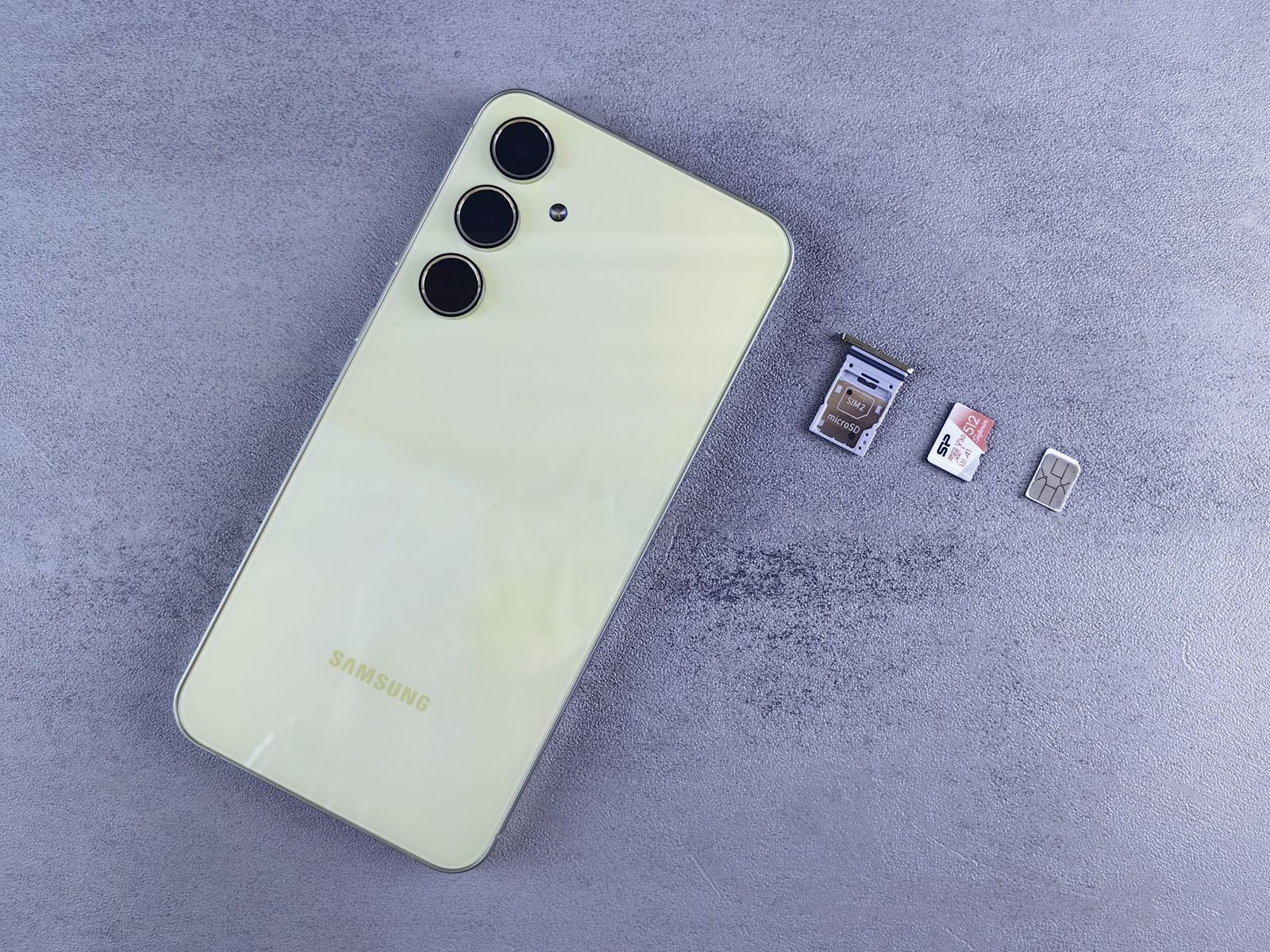
On Android models that still keep a memory card slot — they're becoming rare but do still exist, particularly in the mid-range — a 256 GB microSD card costs a fraction of the premium charged for the 256 GB version of the phone. The trade-off: apps won't install on it, but photos, videos and music will.
The key takeaways
- A "128 GB" gives you 85 to 110 usable GB. That's not a defect, it's arithmetic.
- The biggest source of waste is almost never apps, but automatically downloaded media from messaging apps.
- Emptying the gallery recycle bin is the most frequently forgotten action — and the one that explains why "deleting photos changes nothing."
- The "Other" or "System Data" line mainly hides offline downloads, local backups and a pending update file.
- Cleaning apps are a problem, not a solution.
- Saturated storage drives up mobile data usage, and therefore potentially your bill.
Allow forty-five minutes the first time, then fifteen minutes every six months. It's cheaper than a new phone, and a great deal faster.